Introduction
Welcome to the akesi lili documentation!
akesi lili is a fantasy console for developing retro 2d game boy-styled games using the koto scripting language.
How to use these docs
This section provides guidance on how to navigate and utilize the akesi lili documentation effectively. Whether you're new to akesi lili or an experienced user.
Prerequisites
To develop games with akesi lili, you should have a basic understanding of the koto scripting language. koto is easy to learn, and you can find comprehensive documentation and resources on the koto documentation website.
The latest version of akesi lili (alpha 3 - 0.3.0) uses Koto in version 0.16.
Example
Here's a simple "Hello World" example to get you started with akesi lili:
s={text:''}

# Initialize the game data
export init = ||
 s.text = "Hello, World!"

# Draw the game on the screen
export draw = ||
 # Clear the screen with color 0
 clear(0);

 # Draw the text at position (10, 10) with color 3
 txt(s.text, 10, 10, 3);
In this example:
- The
initfunction sets up the initial game state by storing the text "Hello, World!" in the state objects. - The
drawfunction clears the screen and draws the text at the specified position.
This example demonstrates the basic structure of an akesi lili game, including initializing game data and drawing to the screen.
Specifications
akesi lili is designed with specific technical specifications to provide a retro gaming experience. Below are the key specifications:
- Display: 160x144px with 4 colors, offering a classic Game Boy-like visual style.
- Sprites: 256 8x8 sprites, allowing for a variety of graphical elements in your games.
- Map: 128x64 tiles, providing a large canvas for designing game levels and environments.
- Framerate: Approximately 60fps, ensuring smooth game play and animations.
These specifications are tailored to help developers create authentic retro-style games with a focus on simplicity and nostalgia.
Command Line
After starting akesi lili, you will be greeted by the akesi lili command line interface. This interface allows you to manage games, interact with your command history, and control the application.

The following commands are supported:
history: Allows you to view and manage your command line history.al: The primary tool for opening, creating, importing, exporting, and removing games.clear: Clears the terminal screen.shutdown: Shuts down the akesi lili application.fullscreen: Toggles fullscreen mode on and off.
Each command includes built-in help. To access the help for any command, simply add the -h flag. For example, type al -h to display the help information for the al command.
Controls and Shortcuts
akesi lili provides a straightforward control scheme inspired by classic handheld gaming devices. The following controls are available for use in your games:
Buttons
A: Corresponds to the 'A' key on the keyboard. (Identifier: 0)B: Corresponds to the 'S' key on the keyboard. (Identifier: 1)Start: Corresponds to the 'Enter' key on the keyboard. (Identifier: 2)Select: Corresponds to the 'Space' key on the keyboard. (Identifier: 3)Left: Corresponds to the 'Left Arrow' key on the keyboard. (Identifier: 4)Right: Corresponds to the 'Right Arrow' key on the keyboard. (Identifier: 5)Up: Corresponds to the 'Up Arrow' key on the keyboard. (Identifier: 6)Down: Corresponds to the 'Down Arrow' key on the keyboard. (Identifier: 7)Mouse: Corresponds to the left or right mouse button. (Identifier: 8)
Keyboard Shortcuts
Ctrl + R: Restarts the game, allowing you to quickly reset and test changes.Ctrl + B: Pauses the game, useful for debugging or taking a break.Escape: Toggles between the game view and the editor, providing quick access to your code.Ctrl + S: Saves the current state of the game, ensuring your progress is not lost (editor only).Ctrl + C: Copies a selected sprite to the clipboard for easy duplication (editor only).Ctrl + V: Pastes a sprite from the clipboard onto the sprite selection, streamlining asset management (editor only).Ctrl + Z: Undoes the last action, allowing you to revert mistakes quickly (editor only).Ctrl + Y: Redoes the last undone action, providing flexibility in your workflow (editor only).Ctrl + E: Closes the game and returns to the command line, useful for switching tasks (not available if the editor is open).Ctrl + A: Selects all text in the code editor, making it easy to copy or modify large sections of code.
Koto Scripting Language
This page provides a small introduction to the Koto scripting language to help you get started with akesi lili development. Koto is a simple and expressive programming language.
For a detailed introduction to Koto, please consult the Koto documentation.
Example
Here is a small example of what Koto code looks like:
# Define a function to greet a person
person = {
 name:'John Doe'
}

greet = |name|
 print('Hello {name}!')

# Call the function with a name
greet(person.name);
Helpful links
- Koto Language Guide: Base overview about Koto
- Koto Core Library: Documentation of the Koto core library
- Koto Extra Libraries: Documentation of the Koto extra libraries
Disclaimer
io and os Koto modules are disabled for akesi lili on purpose. Internally akesi lili works with a file system abstraction.
Game Functions
This page provides an overview of the essential game functions available in akesi lili for managing game logic and rendering. These functions allow you to initialize game data, update game state, and draw game elements on the screen.
init
||
The init function is called once when the game starts. It can be used to initialize the game data.
Example
s={speed:0}
init = ||
 s.speed=1
update
||
The update function is called once per game loop iteration, just before the draw function is called. Use this function to update game data, such as moving the player and NPCs.
Example
update=||
  if btn(1)
    g.pla.x+=g.speed
draw
||
The draw function is used to draw the game and is called directly after the update function.
Example
draw=||
  clear(0)
  txt('toki', 1, 1, 3)
These functions form the backbone of your game loop in akesi lili, allowing you to manage the game's initialization, update logic, and rendering efficiently.
Global Values
akesi lili provides a set of predefined global values that you can use in your game scripts to manage dimensions and layouts. These values are essential for handling text, sprites, tile maps, and display settings.
Global values
CHAR_W: Width of a single text character in pixels.CHAR_H: Height of a text character in pixels.SPR_W: Width of a single sprite in pixels.SPR_H: Height of a single sprite in pixels.MAP_W: Width of the complete tile map in number of tiles.MAP_H: Height of the complete tile map in number of tiles.DIS_W: Width of the display in pixels.DIS_H: Height of the display in pixels.
These global values help you ensure consistency and accuracy when designing and rendering game elements in akesi lili.
Drawing Functions
akesi lili provides a comprehensive set of functions to manage colors, palettes, screen and camera settings, and drawing operations. These functions allow you to control the visual aspects of your game, from setting colors to drawing complex shapes and text.
clear
|color: Number|
Clears the entire screen with the specified color. Possible color values are 0, 1, 2, and 3.
Parameters
color: The color to fill the screen with.
Example
clear(1)
cam
|| or |x: Number, y: Number|
Sets the camera offset to the specified coordinates. When called without arguments, resets the camera to (0, 0).
Parameters
x: The x-coordinate for the camera offset (optional).y: The y-coordinate for the camera offset (optional).
Example
cam(10, 15)
cam() # Reset to (0, 0)
tra
|| or |color: Number|
Defines a color to be transparent during drawing operations. When called without arguments, disables transparency. Possible color values are 0, 1, 2, and 3.
Parameters
color: The color to be made transparent (optional).
Example
tra(0) # Make color 0 transparent
tra() # Disable transparency
clip
|| or |x: Number, y: Number, width: Number, height: Number|
Restricts drawing operations to the specified rectangular area. When called without arguments, resets the clipping area.
Parameters
x: The x-coordinate of the top-left corner of the clipping area (optional).y: The y-coordinate of the top-left corner of the clipping area (optional).width: The width of the clipping area (optional).height: The height of the clipping area (optional).
Example
clip(10, 10, 50, 50)
clip() # Reset clipping area
pix
|x: Number, y: Number, color: Number|
Draws a single pixel at the specified coordinates with the given color. Possible color values are 0, 1, 2, and 3.
Parameters
x: The x-coordinate of the pixel.y: The y-coordinate of the pixel.color: The color of the pixel.
Example
pix(5, 5, 2)
rect
|x0: Number, y0: Number, x1: Number, y1: Number, color: Number|
Draws a bordered rectangle defined by two opposite corners with the specified color. Possible color values are 0, 1, 2, and 3.
Parameters
x0: The x-coordinate of the first corner.y0: The y-coordinate of the first corner.x1: The x-coordinate of the opposite corner.y1: The y-coordinate of the opposite corner.color: The color of the rectangle border.
Example
rect(10, 10, 20, 20, 1)
fill_rect
|x0: Number, y0: Number, x1: Number, y1: Number, color: Number|
Draws a filled rectangle defined by two opposite corners with the specified color. Possible color values are 0, 1, 2, and 3.
Parameters
x0: The x-coordinate of the first corner.y0: The y-coordinate of the first corner.x1: The x-coordinate of the opposite corner.y1: The y-coordinate of the opposite corner.color: The color to fill the rectangle with.
Example
fill_rect(10, 10, 20, 20, 2)
circ
|x: Number, y: Number, radius: Number, color: Number|
Draws a bordered circle with the specified center, radius, and color. Possible color values are 0, 1, 2, and 3.
Parameters
x: The x-coordinate of the circle's center.y: The y-coordinate of the circle's center.radius: The radius of the circle.color: The color of the circle border.
Example
circ(15, 15, 10, 3)
fill_circ
|x: Number, y: Number, radius: Number, color: Number|
Draws a filled circle with the specified center, radius, and color. Possible color values are 0, 1, 2, and 3.
Parameters
x: The x-coordinate of the circle's center.y: The y-coordinate of the circle's center.radius: The radius of the circle.color: The color to fill the circle with.
Example
fill_circ(15, 15, 10, 1)
line
|x0: Number, y0: Number, x1: Number, y1: Number, color: Number|
Draws a line from one point to another with the specified color. Possible color values are 0, 1, 2, and 3.
Parameters
x0: The x-coordinate of the starting point.y0: The y-coordinate of the starting point.x1: The x-coordinate of the ending point.y1: The y-coordinate of the ending point.color: The color of the line.
Example
line(5, 5, 15, 15, 2)
txt
|text: String, x: Number, y: Number, color: Number|
Draws text at the specified coordinates with the given color. Possible color values are 0, 1, 2, and 3.
Parameters
text: The text to draw.x: The x-coordinate of the text's starting position.y: The y-coordinate of the text's starting position.color: The color of the text.
Example
txt("Hello", 10, 10, 3)
pal
||
Returns the current active color palette as a string.
Returns
A string representing the active color palette (e.g., "gray", "green", "red", "purple", "catppuccin", "black_white", or "custom").
Example
active_palette = pal()
set_pal
|palette: String|
Sets the current active color palette.
Parameters
palette: The name of the palette to set. Valid values include "gray", "green", "red", "purple", "catppuccin", "black_white".
Example
set_pal("green")
spr
|sprite: Number, x: Number, y: Number| or |sprite: Number, x: Number, y: Number, flip_x: Bool, flip_y: Bool|
Draws a sprite from the sprite sheet at the specified coordinates with optional flipping.
Parameters
sprite: The index of the sprite to draw.x: The x-coordinate to draw the sprite at.y: The y-coordinate to draw the sprite at.flip_x: Whether to flip the sprite horizontally (optional, defaults to false).flip_y: Whether to flip the sprite vertically (optional, defaults to false).
Example
spr(5, 20, 20)
spr(5, 20, 20, true, false) # Flip horizontally
map
|cell_x: Number, cell_y: Number, screen_x: Number, screen_y: Number, cell_width: Number, cell_height: Number|
Draws a portion of the map at the specified screen coordinates with the given cell dimensions.
Parameters
cell_x: The x-coordinate of the map cell to start drawing from.cell_y: The y-coordinate of the map cell to start drawing from.screen_x: The x-coordinate on the screen to draw the map portion at.screen_y: The y-coordinate on the screen to draw the map portion at.cell_width: The width of the map portion in cells.cell_height: The height of the map portion in cells.
Example
map(0, 0, 10, 10, 5, 5)
tile
|x: Number, y: Number|
Returns the index of the sprite at the specified map coordinates.
Parameters
x: The x-coordinate of the map cell.y: The y-coordinate of the map cell.
Returns
The index of the sprite at the specified map coordinates (Number).
Example
sprite_index = tile(5, 5)
set_tile
|x: Number, y: Number, tile: Number|
Replaces the tile at the specified map coordinates with the given sprite index.
Parameters
x: The x-coordinate of the map cell.y: The y-coordinate of the map cell.tile: The index of the sprite to place.
Example
set_tile(5, 5, 3)
Input Functions
akesi lili provides input functions to handle user interactions, such as button presses and mouse movements. These functions allow you to detect and respond to various input events, enhancing the interactivity of your game.
btn
|button: Number|
Checks if the specified button is currently pressed.
Parameters
button: The button to check.0:A1:B2:Start3:Select4:Left5:Right6:Up7:Down8:Mouse
Returns
true if the button is pressed, false otherwise (Bool).
Example
is_pressed = btn(1)
mouse
||
Returns the current position of the mouse pointer.
Returns
A Map containing the mouse coordinates with x and y keys.
Example
mouse_pos = mouse()
print mouse_pos.x, mouse_pos.y
scroll_off
||
Returns the current scroll offset delta.
Returns
A Map containing the scroll offset delta with x and y keys.
Example
scroll = scroll_off()
print scroll.x, scroll.y
These input functions are essential for creating interactive and responsive game experiences in akesi lili.
Flag Functions
akesi lili provides flag functions to manage the state of individual sprites by setting and checking flags. These functions allow you to control specific behaviors or properties of sprites based on their flag states.
flag
|sprite: Number, flag: Number|
Checks if a specific flag is active for the given sprite.
Parameters
sprite: The index of the sprite to check.flag: The flag to check.
Returns
true if the flag is active, false otherwise (Bool).
Example
is_active = flag(1, 2)
set_flag
|sprite: Number, flag: Number, value: Bool|
Sets the active state of a specific flag for the given sprite.
Parameters
sprite: The index of the sprite to modify.flag: The flag to set.value: The state to set the flag to (trueorfalse).
Example
set_flag(1, 2, true)
These flag functions are useful for managing sprite-specific behaviors and properties in akesi lili.
Audio Functions
akesi lili provides audio functions to manage sound effects and playback, allowing you to add audio feedback and enhance the auditory experience of your game.
sound
|name: String, samples: List, rate: Number|
Creates a sound with the specified parameters.
Parameters
name: The name of the sound.samples: The raw audio samples (a list of numbers).rate: The playback rate of the sound.
Example
sound('beep', [0.5, 0.3, 0.1], 44100)
play
|name: String, volume: Number|
Plays the specified sound at the given volume.
Parameters
name: The name of the sound to play.volume: The volume of the sound. 1.0 is the normal volume.
Example
play('beep', 1.0)
stop
|name: String|
Stops a sound that was started with play.
Parameters
name: The name of the sound to stop.
Example
play('beep', 1.0)
stop('beep')
stop_all
||
Stops all active sounds.
Example
play('beep', 1.0)
play('beep2', 1.0)
stop_all()
These audio functions are essential for adding sound effects and managing audio playback in akesi lili.
Save and Load Functions
akesi lili provides functions to save, load, and manage game data, allowing you to persist and retrieve game states or other important information. These functions are essential for implementing save and load functionality in your games.
save
|name: String, content: String| or |name: String, content: Map|
Saves the given content with the specified name.
Parameters
name: The name to save the content under.content: The content to save (either a String or a Map).
Example
save("game_save", {level: 5, score: 1000})
save("player_name", "Alice")
load
|name: String|
Loads content from a save file with the specified name.
Parameters
name: The name of the save file to load.
Returns
The loaded content (String or Map), or throws an error if the save file does not exist.
Example
loaded_content = load("game_save")
print loaded_content.level
saves
||
Returns the names of all stored save files.
Returns
A List of strings representing the names of all stored save files.
Example
save_files = saves()
for name in save_files
  print name
rm_save
|name: String|
Removes a save file with the specified name.
Parameters
name: The name of the save file to remove.
Example
rm_save("game_save")
These save and load functions are crucial for implementing persistent game states and data management in akesi lili.
Drawing Capabilities Example
This example demonstrates the drawing capabilities of akesi lili by showcasing various drawing functions. These functions allow you to create a wide range of visual elements on the screen, from text and shapes to sprites and lines.

Explanation
The code uses different drawing functions to render various elements on the screen. It clears the background, draws text, shapes, pixels, and sprites. This example highlights the versatility of akesi lili's drawing functions.
Code
export draw=||
 # Fills background with color 0
 clear 0

 # Draws text "Drawing"
 txt 'Drawing', 1, 1, 3

 # Draws bordered rectangle
 rect 1, 11, 21, 31, 2

 # Draws filled rectangle
 fill_rect 1, 32, 21, 52, 2

 # Draws bordered circle
 circ 34, 21, 10, 1

 # Draws filled circle
 fill_circ 34, 42, 10, 1

 # Draws single pixel
 pix 53, 21, 3

 # Draws sprite
 spr 0, 49, 38

 # Draws a line
 line 1, 52, 21, 60, 3
How It Works
-
Background Clearing: The
clear(0)function fills the entire screen with color 0 (the first color in the active palette), providing a clean canvas for drawing. -
Text Rendering: The
txt()function displays the text "Drawing" at position (1,1) in color 3, demonstrating basic text output. -
Rectangle Drawing: Two types of rectangles are shown:
rect(1,11,21,31,2)draws a bordered rectangle from point (1,11) to (21,31) in color 2fill_rect(1,32,21,52,2)draws a filled rectangle from point (1,32) to (21,52) in color 2
-
Circle Drawing: Two types of circles are demonstrated:
circ(34,21,10,1)draws a bordered circle centered at (34,21) with radius 10 in color 1fill_circ(34,42,10,1)draws a filled circle centered at (34,42) with radius 10 in color 1
-
Pixel Drawing: The
pix(53,21,3)function sets a single pixel at coordinates (53,21) in color 3, useful for precise drawing operations. -
Sprite Rendering: The
spr(0,49,38)function draws sprite index 0 from the sprite sheet at position (49,38) with no flipping (flip=0 is implied by default). -
Line Drawing: The
line(1,52,21,60,3)function draws a line from point (1,52) to (21,60) in color 3.
This example showcases the complete set of basic drawing primitives available in akesi lili, demonstrating how to create diverse visual elements for your games.
Map Example
This example demonstrates how to create and manipulate a map in akesi lili. It showcases how to move the map using button inputs and draw it on the screen. This is useful for creating scrolling or moving backgrounds in games.

Explanation
The code initializes a game state with camera settings and a text message. It updates the camera position based on button inputs and draws the map and the text on the screen. The map can be moved using the arrow keys, providing a dynamic view of the game world.
Code
s={
 x:0,
 y:0,
 spe:1,
 text:'Move map by buttons',
 text_w:CHAR_W*19
}

export update=||
 if btn 4
  s.x=(s.x+s.spe).min(0)

 if btn 5
  s.x=(s.x-s.spe).max(-((MAP_W*SPR_W)-DIS_W))

 if btn 6
  s.y=(s.y+s.spe).min(0)

 if btn 7
  s.y=(s.y-s.spe).max(-((MAP_H*SPR_H)-DIS_H))

export draw=||
 cam s.x,s.y
 map 0,0,0,0,MAP_W,MAP_H
 cam 0,0
 fill_rect 2,2,6+s.text_w,6+CHAR_H,3
 rect 2,2,6+s.text_w,6+CHAR_H,0
 txt s.text,4,4,0
How It Works
-
State Initialization: The game state
sstores the camera position (x,y), movement speed (spe), and UI text information. -
Input Handling: The
updatefunction checks for directional button presses (4=Left, 5=Right, 6=Up, 7=Down):- When moving left or up, the position is increased (bounded by 0 to keep the map from scrolling too far)
- When moving right or down, the position is decreased (bounded by the negative map size to prevent scrolling beyond the map edge)
- The bounds ensure the camera only shows valid map areas that fit within the display
-
Camera Movement: The
cam()function sets the camera offset, which affects all subsequent drawing operations until it's reset. -
Map Rendering: The
map()function draws the entire tile map (from cell 0,0 with dimensions MAP_W × MAP_H) at the camera-adjusted position. -
UI Overlay: After resetting the camera with
cam(0,0), the UI is drawn in fixed screen coordinates:- A filled rectangle creates a background panel
- A border is drawn around the panel
- The instruction text is displayed on top
This creates a scrollable map view with a fixed UI overlay that remains stationary while the map moves beneath it.
Particle Effects Example
This example demonstrates how to create a simple confetti particle effect using akesi lili. Particle effects can add dynamic and visually appealing elements to your game, such as explosions, smoke, or in this case, confetti.

Explanation
The code initializes a game state with an empty list of particles. When the mouse button is pressed, it generates new particles at the mouse position. Each particle has randomized properties such as position, velocity, and color. The particles are updated and drawn each frame, creating a confetti effect.
Code
# list of particles
par=[]

# random number between min, max
rand=|min,max|
 random.number()*(max-min)+min

# creates a new particle
new_par=|x,y|
 x:rand(-2.0,2.0)+x
 y:rand(-2.0,2.0)+y
 vx:rand(-15.0,15.0)/50.0
 vy:rand(-50.0,10.0)/50.0
 ay:0.05
 ttl:rand(10.0,70.0).round()
 col:rand(1.0,3.0).round()

 # update the particle
 up:||
  self.vy+=self.ay
  self.x+=self.vx
  self.y+=self.vy
  self.ttl-=1

 # draw the particle
 dr:||
  pix self.x,self.y,self.col

export update=||
 # create new particle
 if btn 8
  m=mouse()
  for i in 0..10
   par.push(new_par(m.x,m.y))

 i=0

 # update remove particles
 while i<size par
  if par[i].ttl==0
   par.remove i
  else
   par[i].up()
   i+=1

export draw=||
 clear 3
 title='Press mouse or touch to throw confetti'.to_uppercase()
 txt title,3,3,1
 for p in par
  p.dr()
How It Works
This example demonstrates a particle system for creating dynamic visual effects:
-
Particle Storage: The
pararray stores all active particles in the system. -
Random Number Generation: The
rand()helper function generates random numbers between min and max values, used to add variation to particle properties. -
Particle Creation: The
new_par()function creates a particle object with:x,y: Initial position (randomized slightly around spawn point for spread)vx,vy: Velocity in x and y directions (horizontal spread and upward/downward motion)ay: Acceleration in y-direction (0.05 for gravity effect)ttl: Time-to-live in frames (random between 10-70 frames)col: Color index (randomly chosen between 1-3)up(): Method to update particle physics each framedr(): Method to draw the particle as a single pixel
-
Particle Spawning: When the mouse button (button 8) is pressed:
- Gets current mouse position using
mouse() - Spawns 10 new particles at that location
- Each particle gets randomized initial velocities and properties
- Gets current mouse position using
-
Physics Update: In the
update()function, for each particle:- Applies gravity:
vyincreases byay(acceleration) - Updates position: Adds velocity to position (
x += vx,y += vy) - Decreases time-to-live counter
- Removes particles when
ttlreaches 0
- Applies gravity:
-
Rendering: In the
draw()function:- Clears screen with color 3
- Displays instruction text at the top
- Draws each active particle as a single pixel at its current position with its assigned color
The result is a dynamic confetti effect where particles shoot out from the mouse click position, arc downward due to gravity, and eventually disappear after their lifetime expires. The randomization creates natural-looking variation in the particle motion and appearance.
Ray Cast Example
This example demonstrates a simple first-person perspective game using ray casting in akesi lili. Ray casting is a technique used to render a 3D perspective from a 2D map, creating the illusion of depth. This example showcases how to implement basic movement, rotation, and rendering of a first-person view.
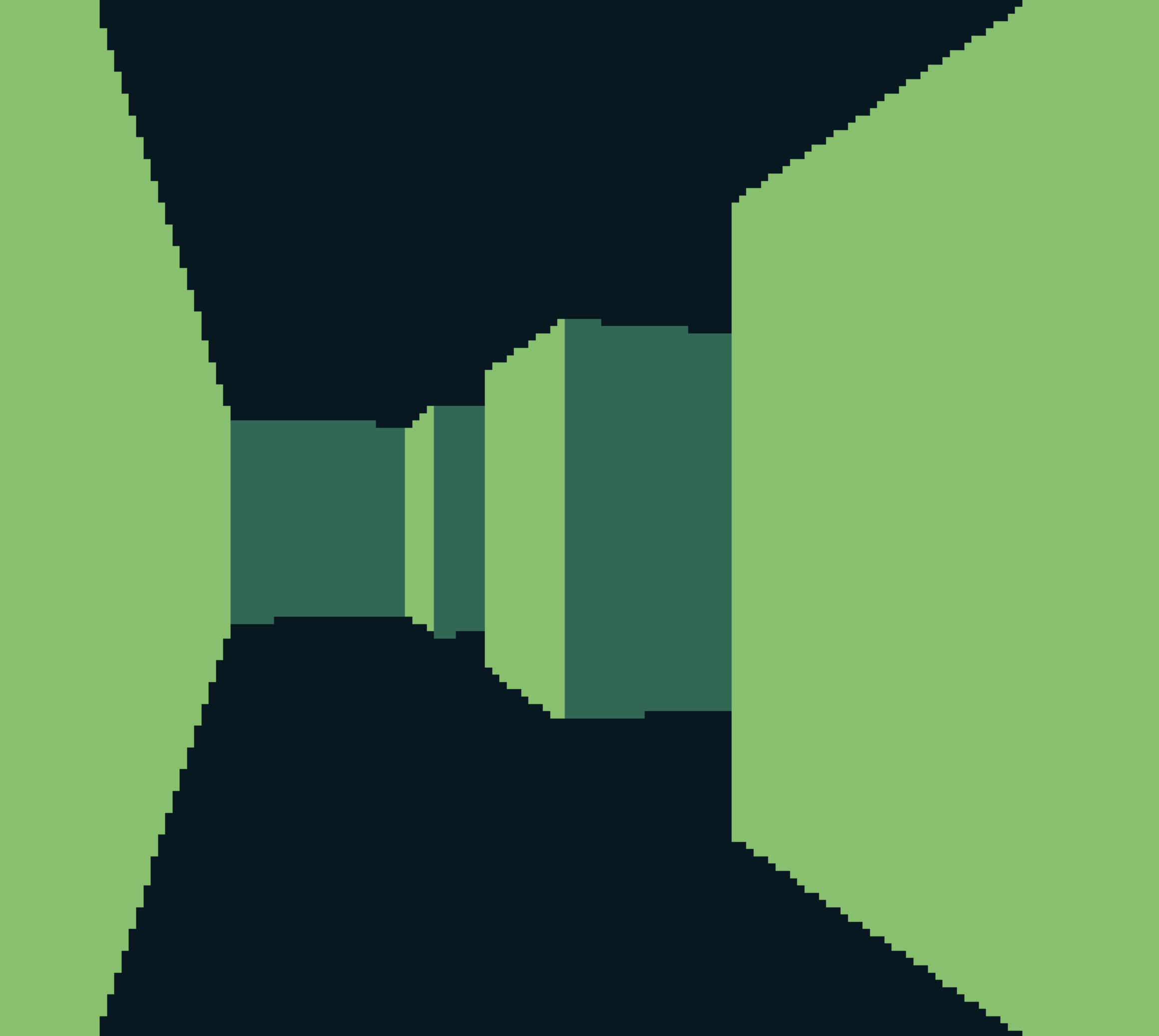
Explanation
The code initializes a game state with a map, player position, direction, and movement speed. It updates the player's position and direction based on button inputs and renders the scene using a simple ray casting algorithm. The map is represented as a 2D grid, where # represents walls and . represents empty space.
Code
m=[
 "##############################",
 "#..........#..............#..#",
 "#.######.#.#########.#####.#.#",
 "#.#......#.#.............#.#.#",
 "#.#.######.#.###.###.###.#.#.#",
 "#.#.#......#.#.....#...#.#.#.#",
 "#.#.#.######.#.###.#.###.#.#.#",
 "#.#...#......#.....#...#.#.#.#",
 "#.#####.#########.###.#.#.#.#.#",
 "#...#...#.............#...#.#.#",
 "#.###.#.#########.###.#.###.#.#",
 "#.....#.#.............#...#...#",
 "#.#######.#########.###.#.###.#",
 "#.......#...#...........#...#.#",
 "#.#######.###.###########.###.#",
 "#........#...#..............#.#",
 "#.#########.###.#############.#",
 "#........#.....#............#.#",
 "#.#########.###.#############.#",
 "##############################"
]

val_pos=|x,y|
 x=x.floor()
 y=y.floor()
 x>=0
  and x<m.iter().count()
  and y>=0
  and y<m[0].iter().count()
  and m[x][y]=='.'

poi=|x,y|
 x:x
 y:y

s={
 pos:poi(2,2),
 dir:poi(0,-1),
 pla:poi(0.66,0),
 mo_sp:0.2,
 ro_sp:0.1,
}

export update=||
 # Turn right
 if btn 5
  old_dir_x = s.dir.x
  s.dir.x = s.dir.x * s.ro_sp.cos() - s.dir.y * s.ro_sp.sin()
  s.dir.y = old_dir_x * s.ro_sp.sin() + s.dir.y * s.ro_sp.cos()
  old_pla_x = s.pla.x
  s.pla.x = s.pla.x * s.ro_sp.cos() - s.pla.y * s.ro_sp.sin()
  s.pla.y = old_pla_x * s.ro_sp.sin() + s.pla.y * s.ro_sp.cos()

 # Turn left
 if btn 4
  old_dir_x = s.dir.x
  s.dir.x = s.dir.x * (-s.ro_sp).cos() - s.dir.y * (-s.ro_sp).sin()
  s.dir.y = old_dir_x* (-s.ro_sp).sin() + s.dir.y * (-s.ro_sp).cos()
  old_pla_x = s.pla.x
  s.pla.x = s.pla.x * (-s.ro_sp).cos() - s.pla.y * (-s.ro_sp).sin()
  s.pla.y = old_pla_x * (-s.ro_sp).sin() + s.pla.y * (-s.ro_sp).cos()

 # Move forward
 if btn 6
  new_pos_x = s.pos.x + s.dir.x * s.mo_sp
  new_pos_y = s.pos.y + s.dir.y * s.mo_sp

  if val_pos(new_pos_x, s.pos.y)
   s.pos.x = new_pos_x

  if val_pos(s.pos.x, new_pos_y)
   s.pos.y = new_pos_y

 # Move backward
 if btn 7
  new_pos_x = s.pos.x - s.dir.x * s.mo_sp
  new_pos_y = s.pos.y - s.dir.y * s.mo_sp

  if val_pos new_pos_x, s.pos.y
   s.pos.x = new_pos_x

  if val_pos s.pos.x, new_pos_y
   s.pos.y = new_pos_y

export draw=||
 clear 0

 # Simple raycasting algorithm
 for x in 0..DIS_W
  cam_x = 2.0 * x / DIS_W - 1.0
  ray_dir_x = s.dir.x + s.pla.x * cam_x
  ray_dir_y = s.dir.y + s.pla.y * cam_x

  map_x = s.pos.x.floor()
  map_y = s.pos.y.floor()

  del_dis_x = (1.0 + (ray_dir_y * ray_dir_y) / (ray_dir_x * ray_dir_x)).sqrt()
  del_dis_y = (1.0 + (ray_dir_x * ray_dir_x) / (ray_dir_y * ray_dir_y)).sqrt()

  side_dis_x=0
  side_dis_y=0
  step_x=0
  step_y=0

  if ray_dir_x < 0.0
   step_x = -1
   side_dis_x = (s.pos.x - map_x * 1.0) * del_dis_x
  else
   step_x = 1
   side_dis_x = (map_x + 1.0 - s.pos.x) * del_dis_x

  if ray_dir_y < 0.0
   step_y = -1
   side_dis_y = (s.pos.y - map_y * 1.0) * del_dis_y
  else
   step_y = 1
   side_dis_y = (map_y + 1.0 - s.pos.y) * del_dis_y

  side=null

  while true
   if side_dis_x < side_dis_y
    side_dis_x += del_dis_x
    map_x += step_x
    side = 0
   else
    side_dis_y += del_dis_y
    map_y += step_y
    side = 1

   # Check bounds before access the map
   if map_x < 0 or map_x >= size m or map_y < 0 or map_y >= size m[0]
    break

   if m[map_x][map_y] == '#'
    break

  per_wal_dis=null

  if side == 0
   per_wal_dis = (map_x - s.pos.x + (1.0 - step_x) / 2.0) / ray_dir_x
  else
   per_wal_dis = (map_y - s.pos.y + (1.0 - step_y) / 2.0) / ray_dir_y


  # Ensure per_wal_dis is not too small to avoid overflow
  if per_wal_dis > 0.0001
   lin_hei = (DIS_H / per_wal_dis).floor()
   draw_sta = (-lin_hei / 2.0 + DIS_H / 2.0).floor()
   draw_end = (lin_hei / 2.0 + DIS_H / 2.0).floor()

   if draw_sta < 0
    draw_sta = 0

   if draw_end >= DIS_H
    draw_end = DIS_H - 1

   col = if side==1 then 2 else 1

   for y in draw_sta..draw_end
    pix(x, y, col)
How It Works
This example implements a classic ray casting algorithm to create a 3D first-person view from a 2D map:
-
Map Representation: The map
mis a 2D grid of strings where#represents walls and.represents walkable space. Theval_pos()function checks if a position is valid (within bounds and not a wall). -
Player State: The
sobject stores:pos: Player position in the map (starts at 2,2)dir: Direction vector the player is facingpla: Camera plane vector (perpendicular to direction, determines field of view)mo_sp: Movement speed (0.2 units per frame)ro_sp: Rotation speed (0.1 radians per frame)
-
Rotation (Left/Right buttons): Uses 2D rotation matrices to rotate both the direction and plane vectors:
- Applies
cos(angle)andsin(angle)transformations - Right button rotates clockwise, left button rotates counter-clockwise
- Both vectors must rotate together to maintain proper camera perspective
- Applies
-
Movement (Up/Down buttons):
- Forward movement moves in the direction vector, backward movement moves opposite
- Each axis is validated separately using
val_pos()to enable sliding along walls - Movement is scaled by
mo_spfor consistent speed
-
Ray Casting Algorithm: For each vertical pixel column (x-coordinate):
- Ray Direction: Calculates a ray direction by interpolating across the camera plane using
cam_x - DDA Setup: Initializes Digital Differential Analysis (DDA) algorithm variables:
del_dis_x/y: Distance the ray travels to cross one grid squareside_dis_x/y: Distance to the next grid linestep_x/y: Direction to step in the grid (+1 or -1)
- Grid Traversal: Steps through grid squares using DDA until hitting a wall (
#) - Distance Calculation: Computes perpendicular wall distance to avoid fisheye distortion
- Wall Height: Projects the 3D wall height based on distance (
DIS_H / per_wal_dis) - Color Selection: Uses different colors for horizontal vs. vertical walls (color 2 vs. 1) for depth perception
- Vertical Line Drawing: Draws a vertical line of pixels for each column to represent the wall
- Ray Direction: Calculates a ray direction by interpolating across the camera plane using
This creates a pseudo-3D effect where closer walls appear taller and farther walls appear shorter, similar to classic games like Wolfenstein 3D.